If you have forgotten your password, entered it incorrectly too many times, or simply need to set a new one, Red Oak provides a self-service password reset directly from the login screen. The process takes only a few minutes and requires access to the email address associated with your account.
Note: If your organization uses Single Sign-On (SSO), you can only login via the link provided by your IT or compliance department. SSO users do not have passwords.
Step-by-Step: Resetting Your Password
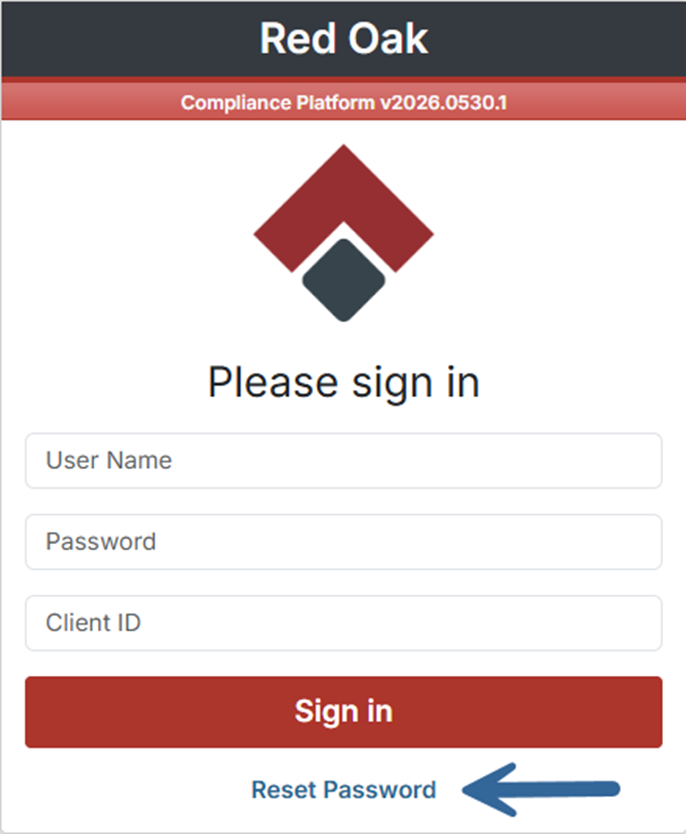
Step 1: Go to the Login Page and Click “Reset Password”
Navigate to admaster-prod.redoakcompliance.com in your web browser. On the login screen, click the Reset Password link at the bottom of the page.
Step 2: Enter Your Username and Client ID
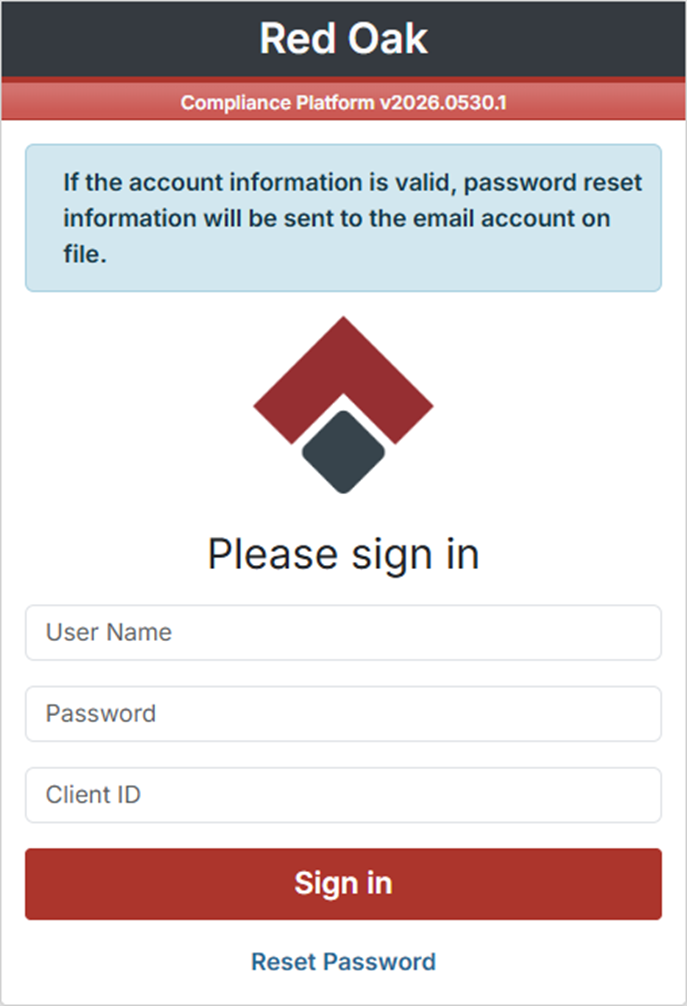
After clicking Reset Password, the login screen will display a confirmation message. Enter your User Name and Client ID in the fields provided, then click Sign In. If the account information is valid, a password reset email will be sent to the address on file.
Tip: Your User Name and Client ID were provided in your original activation email. If you are unsure of your Client ID, contact your firm’s Red Oak administrator.
Step 3: Check Your Email and Click the Reset Link
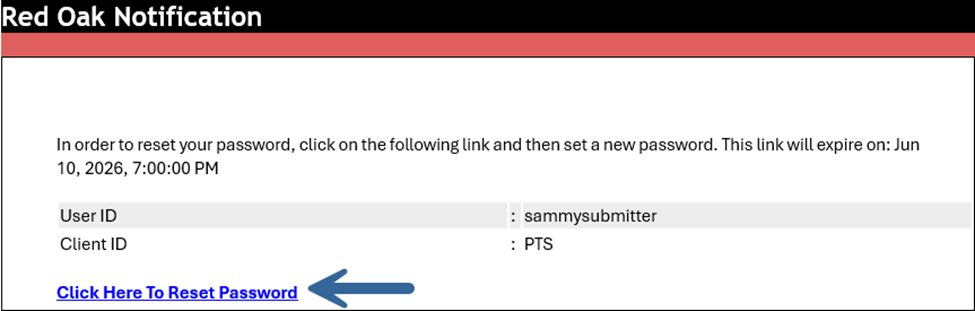
Open the Red Oak Notification email in your inbox. The email will display your User ID and Client ID for confirmation, along with an expiry date and time for the reset link. Click the Click Here To Reset Password link to proceed.
Note: The reset link expires within a set window (shown in the email). If it has expired before you click it, return to the login page and request a new one.
Step 4: Set Your New Password
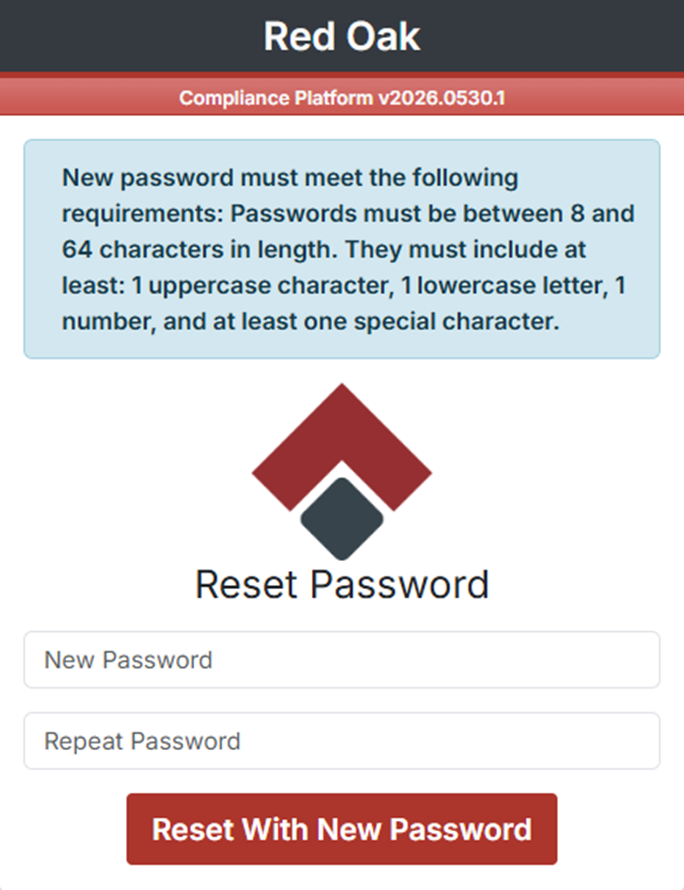
The reset link will open the Reset Password screen. Enter your new password in the New Password field and repeat it in the Repeat Password field, then click Reset With New Password.
Your new password must meet the requirements set by your administrator, which will be displayed on the Password Reset screen.
Note: Red Oak passwords are case-sensitive. Choose something secure and avoid reusing previous passwords.
Step 5: Confirmation — Log In with Your New Password
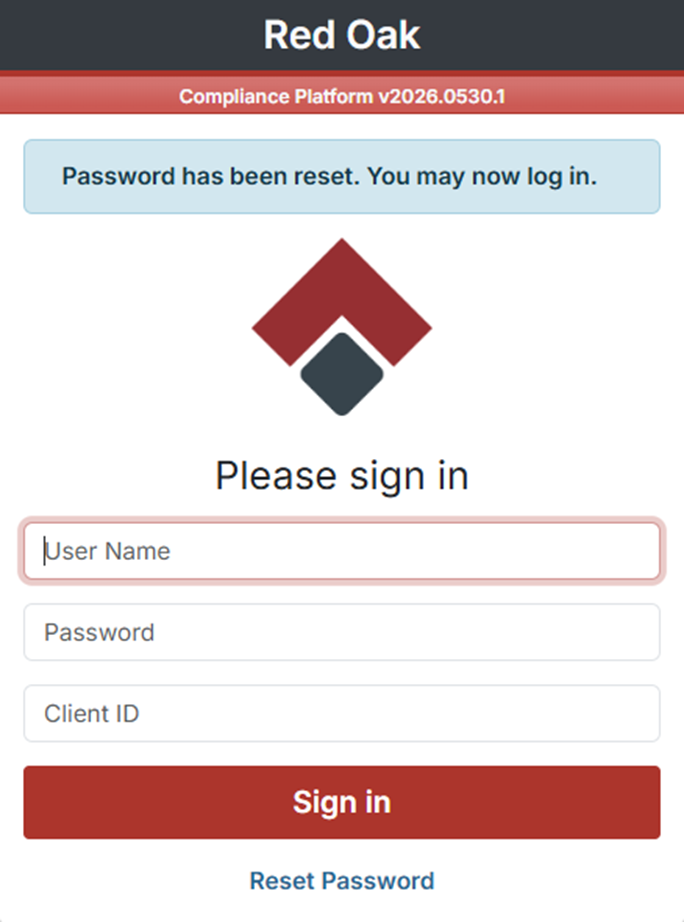
Once your password has been successfully reset, the screen will display the confirmation message: “Password has been reset. You may now log in.” Enter your credentials on the login screen to access your account.
Using Single Sign-On (SSO)?
If your organization uses Single Sign-On, your Red Oak login is managed through your company’s identity provider. You will not have a separate Red Oak password to reset. Contact your internal IT team or helpdesk to reset your SSO credentials. Your IT team can provide you with a direct SSO login link once access is restored.
Was this article helpful?
That’s Great!
Thank you for your feedback
Sorry! We couldn't be helpful
Thank you for your feedback
Feedback sent
We appreciate your effort and will try to fix the article